
How to edit videos on an iPhone
Published Updated

Contents
Here’s how to edit videos on iPhone. This time I will do it with free iMovie.
Install iPhone video editing application iMovie
Install iMovie from the App Store.
https://itunes.apple.com/jp/app/imovie/id377298193?mt=8
Create a project
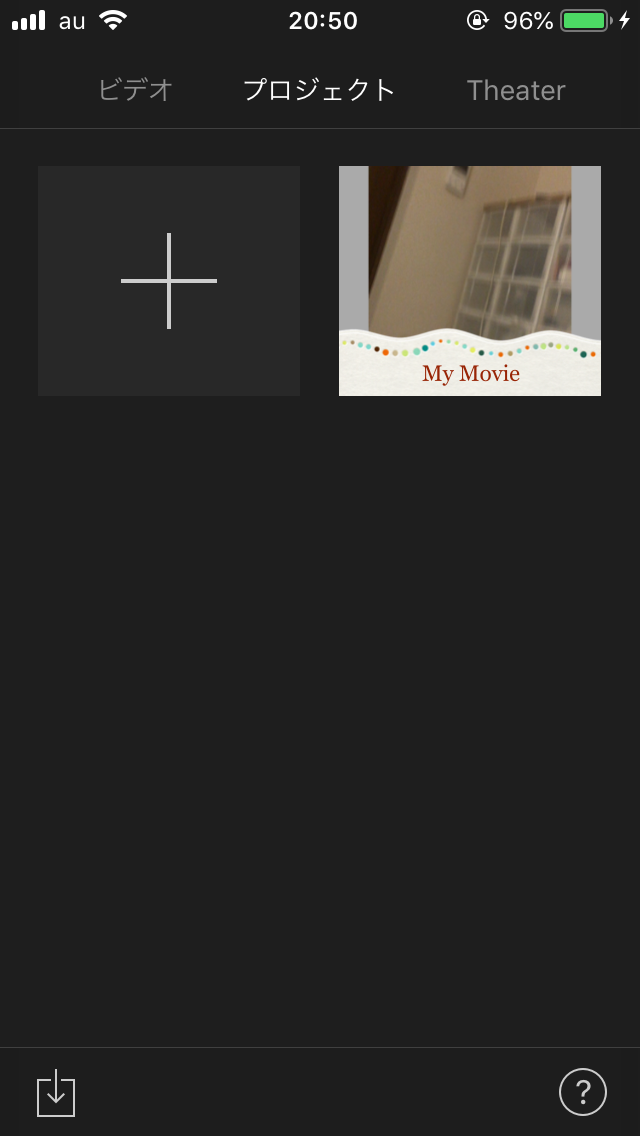
When you start it, it becomes the screen on the left, so press the plus sign on the project tab. Then select a movie.

Load movie
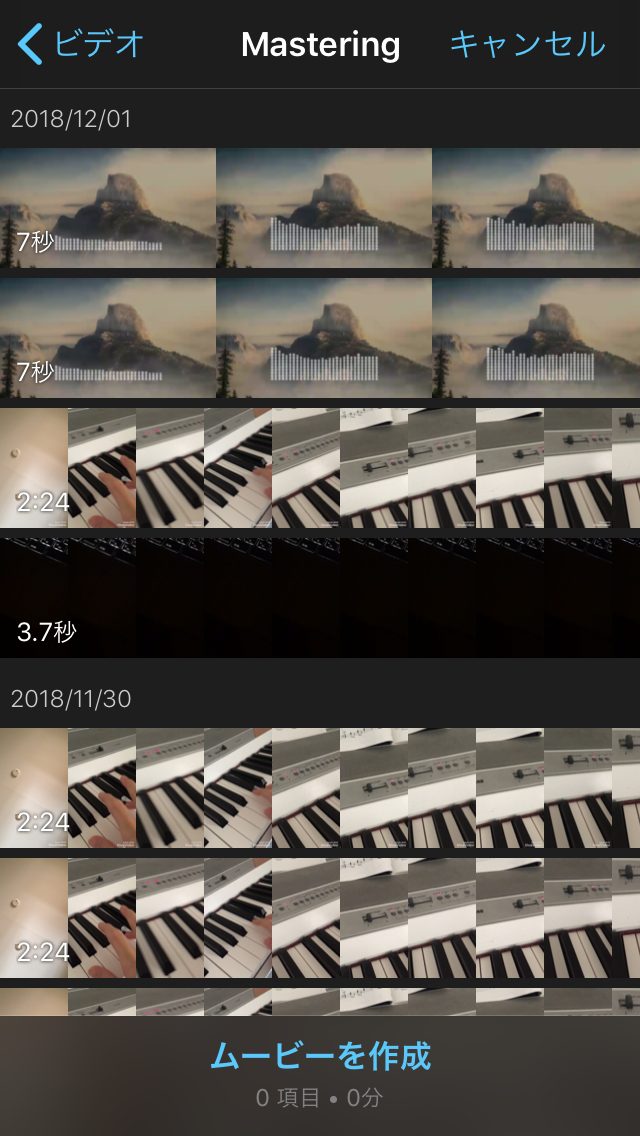
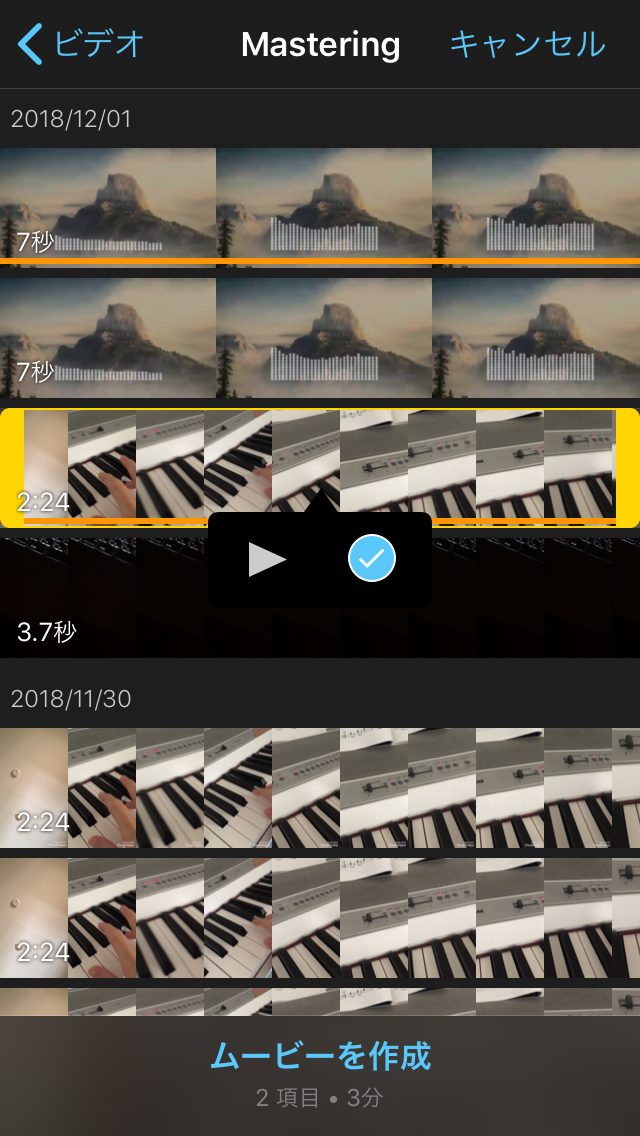
Select the material video. Multiple selections are possible.
Cut video
When you tap a movie, an editing menu like the left picture appears. After choosing scissors and choosing Split, you can cut the video at the point you select like the right image.


Sort videos
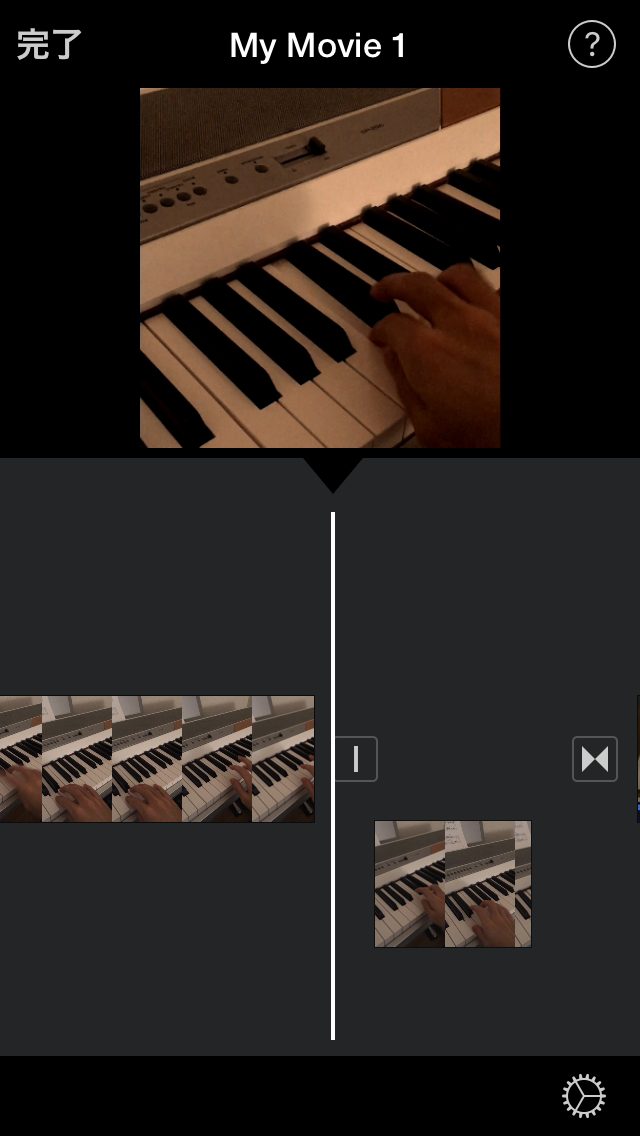
Touch and hold the movie to change the order of the movies by drag & drop.
Adjust the volume of movies
You can adjust the volume by tapping the video with a choice and selecting the speaker in the Edit menu.

Export movie
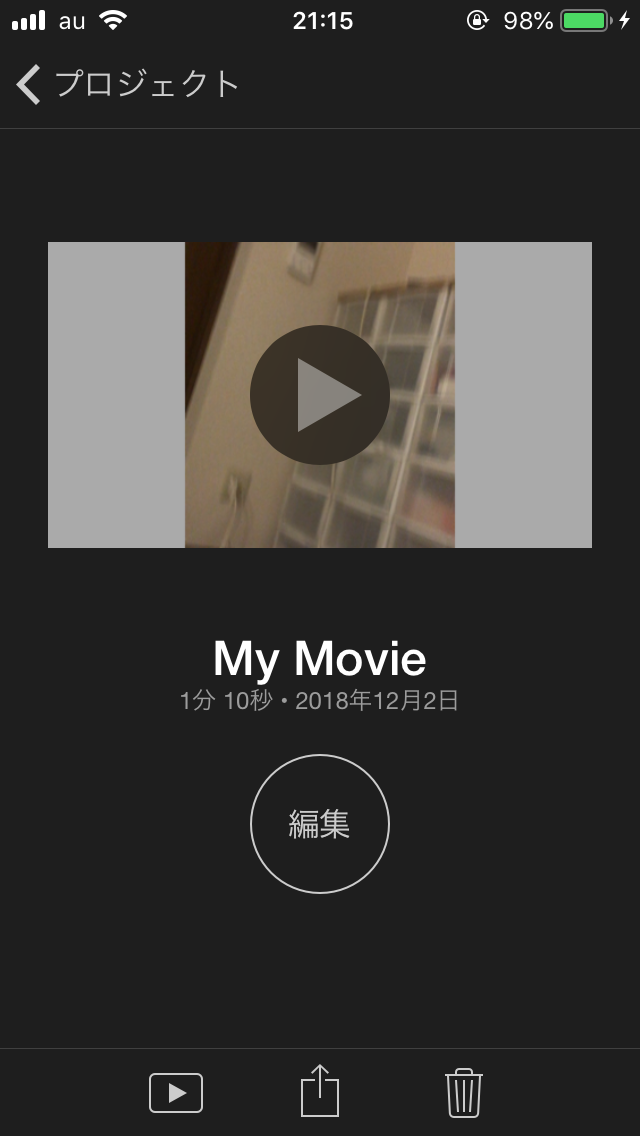
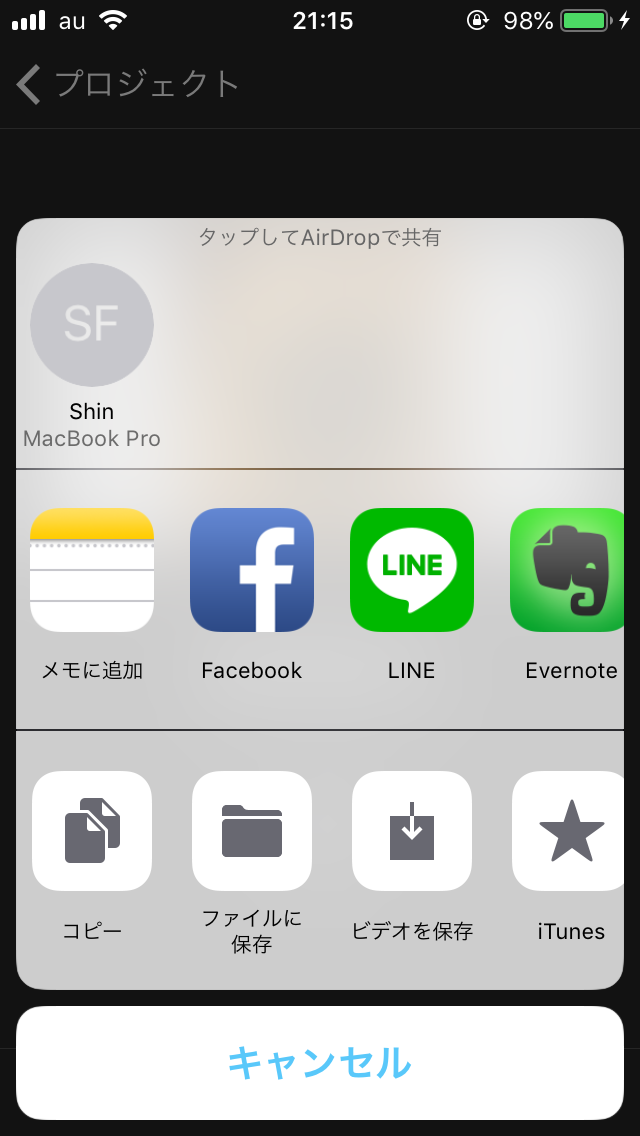
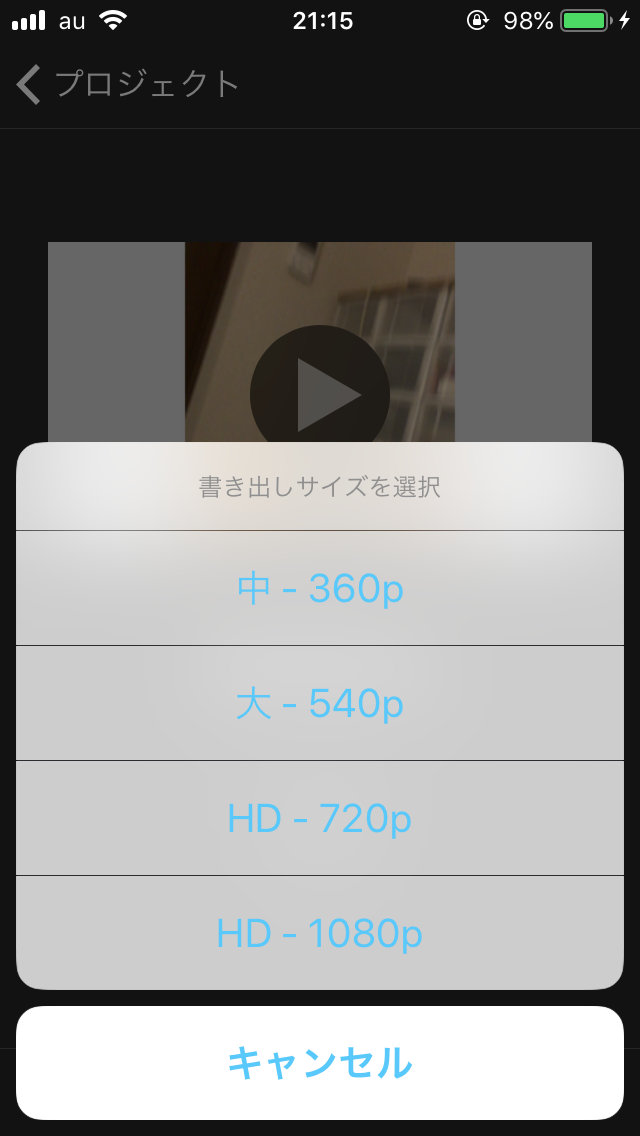
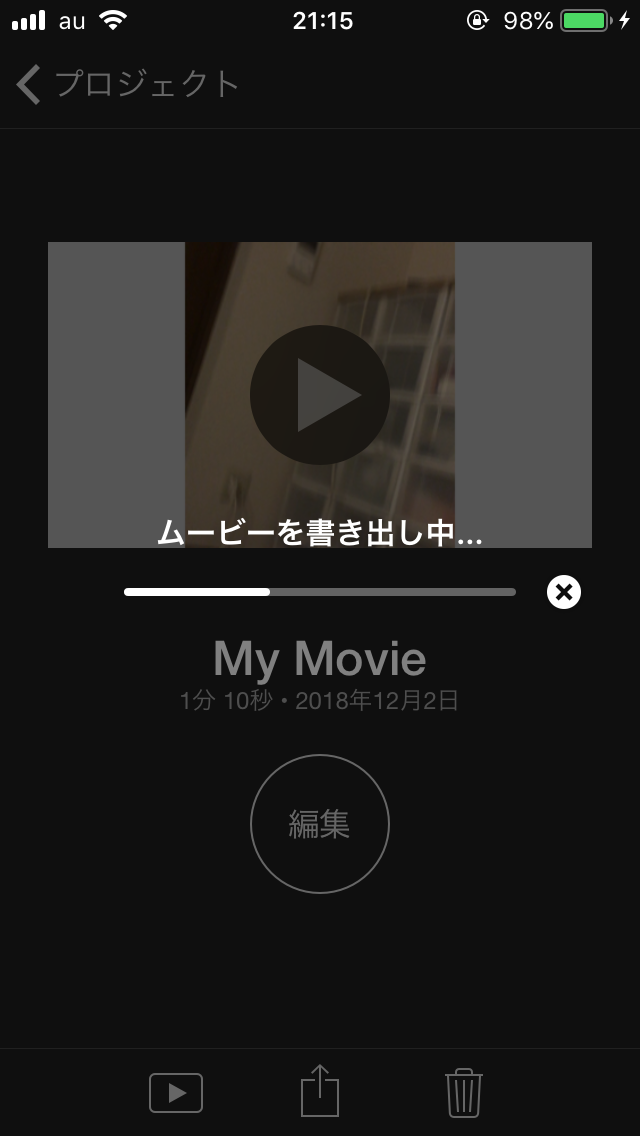
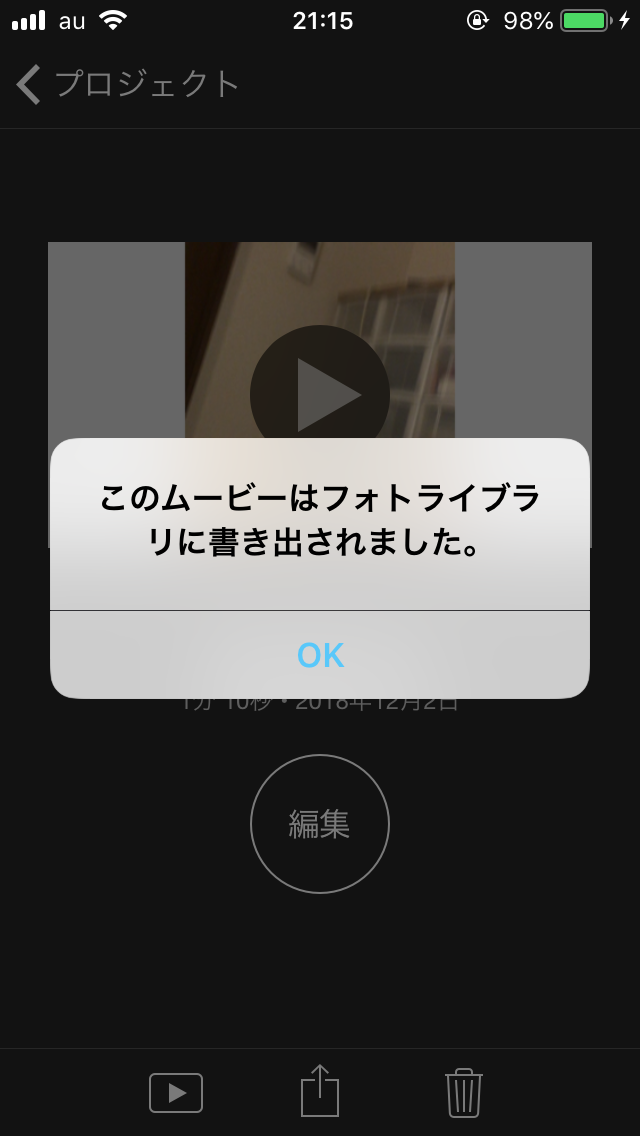
By pressing the completion button at the upper left of the screen and pressing the send button at the bottom of the screen, you can export the movie to various applications. For this time, save to the photo library, so choose Save Video. When you select export settings, the export will start.
Increase the quality of audio (publicity)
Using our AI Mastering, you can raise the quality of the edited movie. Please try it with a video made with iMovie!
For details, please click here .
Summary
I showed you how to edit videos on iPhone.
The efficiency of video editing and the quality of the resulting video will vary greatly depending on which application you use. Therefore, selecting an application is important.
I will introduce a video editing application other than iMovie at a later date.